Moko-Young's Factoid Firefly album on Photobucket
Showing posts with label Video. Show all posts

Wednesday, November 6, 2013

{Digital Art} It's a Good Morning! - Mandisa Portriat!

Reference Image - Copyrights goes to Mandisa
This is Mandisa, she pwns.
She made Simon Apologize.
We Love Mandisa.

Okay lets get to the art......

This is Mandisa, she's a Christian singer but she got her start on American Idol.
I aimed for the same goal as with my TobyMac Portriat, not "realistic" but you can tell it's the person!
This took me a while, and I lost motivation and inspiration but still managed to finish it. I went through editing the sketch a bunch of times but the final sketch is below.

Enjoy!

Programs Used:
  • MyPaint
  • GIMP
  • HyperCam
  • Windows Movie Maker

Bigger Version
Bigger Version


May God Bless You, Your Family, Friend; Along With The Health Of Yourself, Family, Friends, And All Who Know You. ~ Amen


~ Firefly


Useful Links:

Would You Like To Read More Blog Posts Similar To This One? Take A Look At The Official Blog Archive.
Would You Like To See My Drawings? Click here.

Have A Question?
Ask The Firefly!

Wednesday, October 2, 2013

{Digital Art} Speak Life; TobyMac Portriat

This is my first portrait of a celebrity and my first art project being 18! wooo yay me!
Sketch One - Bigger Version
This is TobyMac, he's a Christian singer (pop hiphop stuff) more famous among us kids, hah!
Sketch 2 (Edit) - Bigger Version
But anyways I've only done one other portrait, it was of a lady's daughter and I didn't post to keep the confidence. I'm new to this kinda thing and coping people and photo references are my worst nightmare. I'm wasn't going for full realism or anything but I did want it to look like him!
I guess you'd say I wanted capture his essence. I was going to outline him in the end but I forgot so...oops! L0L


Anyways...Enjoy!


Bigger Version


Bigger Version

Programs used:


  • MyPaint
  • GIMP
  • HyperCam
  • Windows Movie Maker


Photo Reference


My video of this is going to be a little odd, I put the sketch in the wrong spot in the middle of the video, but it took so long to export that I didn't want to wait until tomorrow to upload it so I stuck with this version. - It also skips a lot of stuff, the laptop I use to draw on was getting laggy with MyPaint, GIMP, HyperCam and  Media player all at once so I turned HyperCam off.


May God Bless You, Your Family, Friend; Along With The Health Of Yourself, Family, Friends, And All Who Know You. ~ Amen


~ Firefly


Useful Links:
Would You Like To See More Of My Drawings? Click here.
Would You Like To Read My Blog Posts? Take A Look At The Official Blog Archive.

Monday, July 29, 2013

MyPaint Brush Usage Demonstrations - Video 6:

 MyPaint Brush Usage Demonstrations - Video 6:

This is Video 6 of my currently ongoing series of videos based on the brushes in MyPaint, for better understanding of how they work. - In case you haven't seen the first video I recommend you go here to see it and the first post. 

The Brushes I will cover in this video are:

  • Detail 1
  • Detail 2
  • Detail 3
  • Detail 4
  • Charcoal

Excerpt from the first post:

Each section will be a mini Speed-Paint (Time-Lapse-Video), the finished drawing will show the icon for the brush I used and before beginning a drawing there will be a circles around the brush as seen in the brush menu. - All brushes in this video are from the “Set #2” in the brush menu. -


Note: The Drawings will not be particularly awesome, it's just to get the point across. - No Audio


My Review/Overview for MyPaint can be found here.
MyPaint itself can be found here.


Previous Videos:
Video One
Video Two
Video Three
Video Four 


I hope this video and the series thus far has helped you in getting started with MyPaint.
 
Enjoy!

May God bless you, your family, friends; along with the health of yourself, family, and all who know you. ~ Amen


~ Firefly

Useful Links:

Would You Like To Read More Blog Posts Similar To This One? Take A Look At The Official Blog Archive.
Would You Like To See My Drawings? Click here.

Have A Question?
Ask The Firefly!

Tuesday, July 23, 2013

MyPaint Brush Usage Demonstrations - Video 2:

MyPaint Brush Usage Demonstrations - Video 2:

This is Video 2 of my currently ongoing series of videos based on the brushes in MyPaint, for better understanding of how they work. - In case you haven't seen the first video I recommend you go here to see it and the first post. 

The Brushes I will cover in this video are:
  • Sketch Marker
  • Mop Brush
  • Marker
  • Ballpoint Pen
  • Airbrush

Excerpt from the first post:

Each section will be a mini Speed-Paint (Time-Lapse-Video), the finished drawing will show the icon for the brush I used and before beginning a drawing there will be a circles around the brush as seen in the brush menu. - All brushes in this video are from the “Set #2” in the brush menu. -

Note: The Drawings will not be particularly awesome, it's just to get the point across. - No Audio

[Update: A Written Out Version of the Video can be downloaded here - Or be found in the "Downloads section of the blog.]


My Review/Overview for MyPaint can be found here.
MyPaint itself can be found here.

Video 1
Video 3
Video 4
Video 5
Video 6
  

I hope this video and the series thus far has helped you in getting started with MyPaint.
 
Enjoy! 

May God bless you, your family, friends; along with the health of yourself, family, and all who know you. ~ Amen


~ Firefly


Useful Links:

Would You Like To Read More Blog Posts Similar To This One? Take A Look At The Official Blog Archive.
Would You Like To See My Drawings? Click here.
Have A Question?

Monday, July 22, 2013

MyPaint Brush Usage Demonstrations - Video 1:

MyPaint Brush Usage Demonstrations - Video 1:


A while back I wrote a semi review and a heavy overview of the art program MyPaint
Although the overview was quiet detailed I thought I'd make a video and probably the first of a series based off of the brushes on MyPaint. Each brush I use, I use only that tool, not even an eraser if I wanted to erase I used white instead of the eraser. - I didn't sick with total default settings of the brush itself but it's good to see the brush used in different ways anyway.

The brushes I used are as follows:
  • Light Pencil
  • Hard Pencil
  • Art Pen
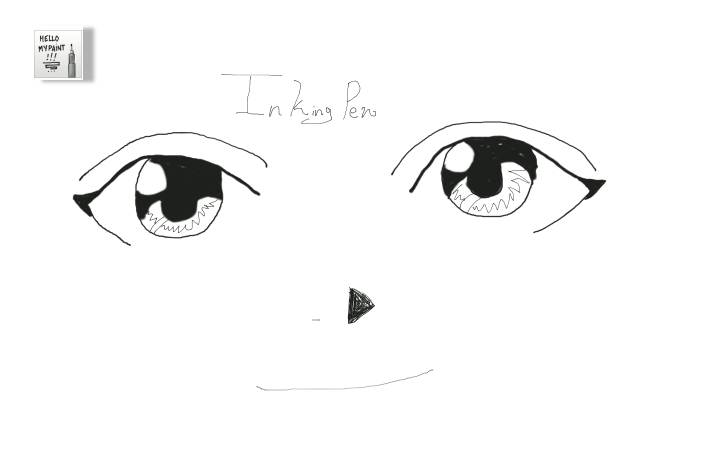
  • Inking Pen
  • and Fill – Marker
My Review/Overview for MyPaint can be found here.

[Update: If you prefer to read in detail instead of watch a video Click Here to download a readable description of each brush in this video.]

Each section will be a mini Speed-Paint (Time-Lapse-Video), the finished drawing will show the icon for the brush I used and before beginning a drawing there will be a circles around the brush as seen in the menu. - All brushes in this video are from the “Set #2” in the brush menu. - Note: The Drawings will not be particularly awesome, it's just to get the point across. - No Audio.

Light Pencil is good more for early sketch lines, as it is very light. -  But I still attempted to draw something.


Video 2
Video 3
Video 4
Video 5 
Video 6

I hope this has helped you in getting started with MyPaint.
Enjoy! 


May God bless you, your family, friends; along with the health of yourself, family, and all who know you. ~ Amen


~ Firefly

Useful Links:

Would You Like To Read More Blog Posts Similar To This One? Take A Look At The Official Blog Archive.
Would You Like To See My Drawings? Click here.

Have A Question?